
How to Enter a Trip
Every load you run should be logged in OTR. The Trips section tracks your revenue, miles, and pay breakdown for every load — so you always know what you made and what it cost you to make it.
The Trips Overview Page
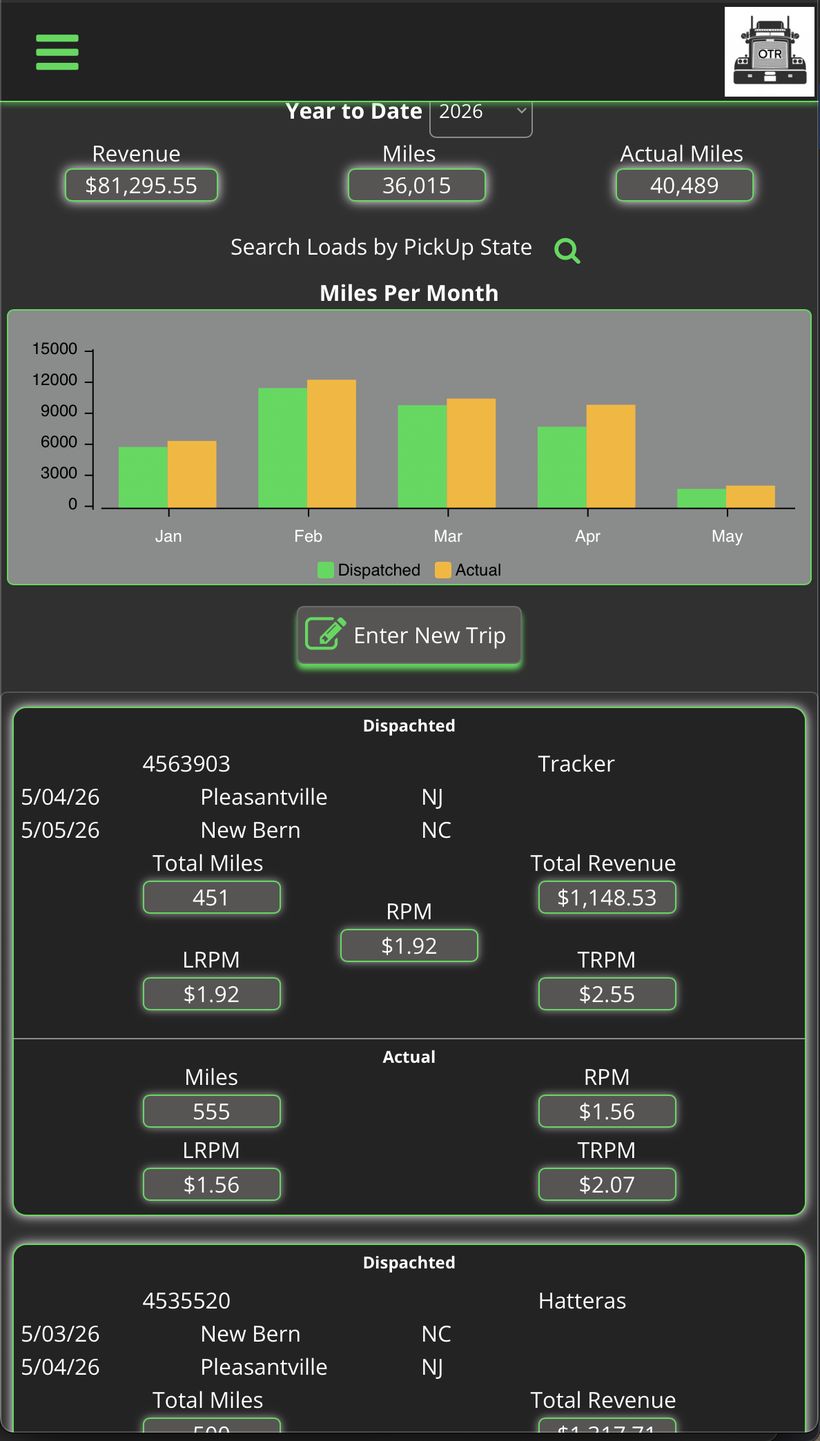
What you see when you tap Trips in the sidebar
This is your trips dashboard — everything you've hauled, summarized at the top and listed below.
- Year to Date — Header dropdown — tap it to switch between years and compare performance over time.
- Revenue — Total income logged across all trips for that year.
- Miles — Dispatched (planned) miles for the year.
- Actual Miles — Real odometer miles — what the truck actually rolled.
- Search by Pickup State — Filters the trip list below. Useful for IFTA tracking or spotting which lanes perform best.
- Miles Per Month Chart — Side-by-side bars show Dispatched vs Actual miles each month. Two or three soft months in a row is a signal worth acting on.
Tip: Watch the gap between Miles and Actual Miles.
If actual is consistently higher, you're running more deadhead than you're getting paid for.
Entering a New Trip — Top Half
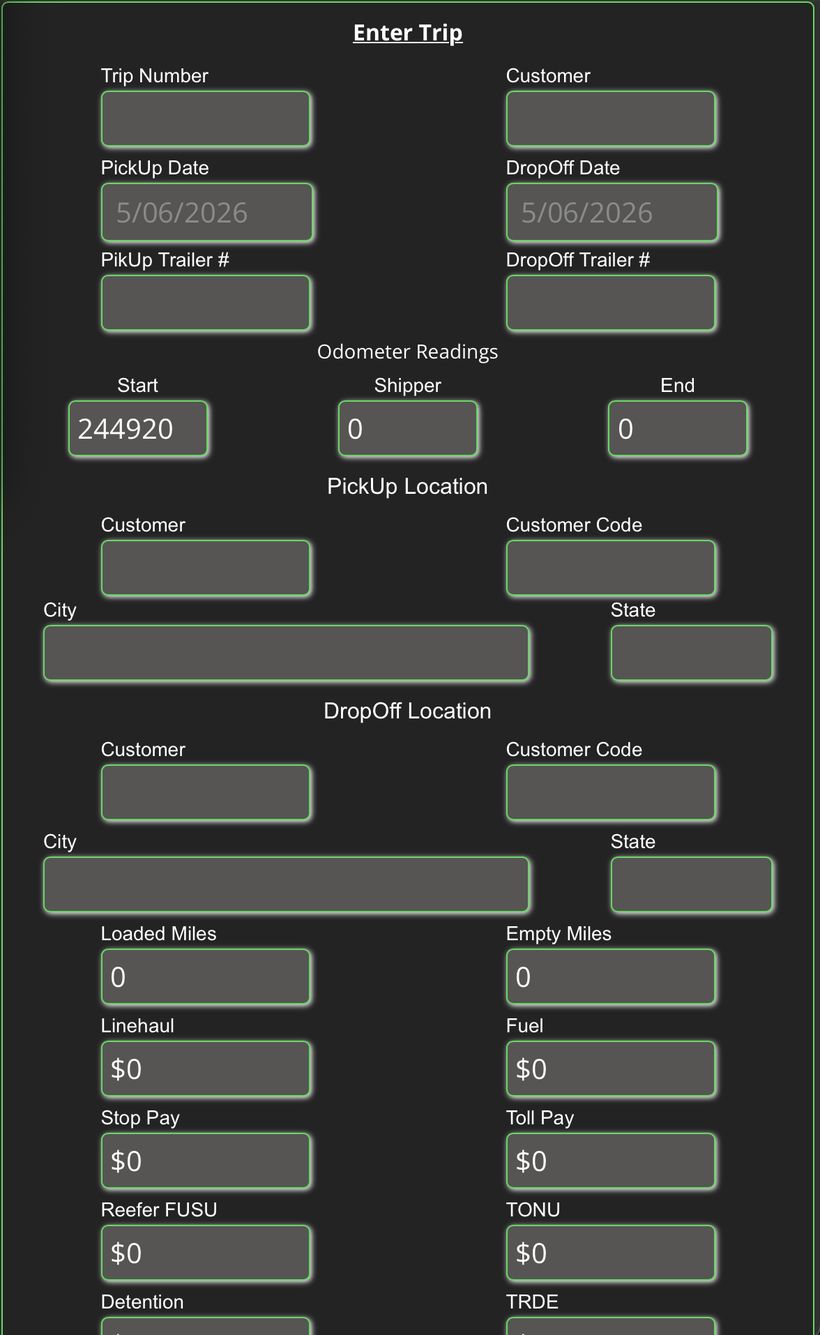
Tap "Enter New Trip" to open the form
Fill in the details from your rate confirmation. Work top to bottom.
- Trip Number — Your load or pro number from dispatch.
- Customer — Who you're hauling for — broker or direct shipper.
- PickUp Date / DropOff Date — The dates from your rate con.
- PickUp / DropOff Trailer # — Trailer number at each stop — good for audit trail.
- Odometer Readings — Start and End odometer — OTR uses these to calculate your actual miles for this load.
- Shipper (middle field) — Odometer reading at the shipper location.
- PickUp Location — Customer, customer code, city, and state for the pickup.
- DropOff Location — Same fields for the delivery stop.
Entering a New Trip — Pay Breakdown
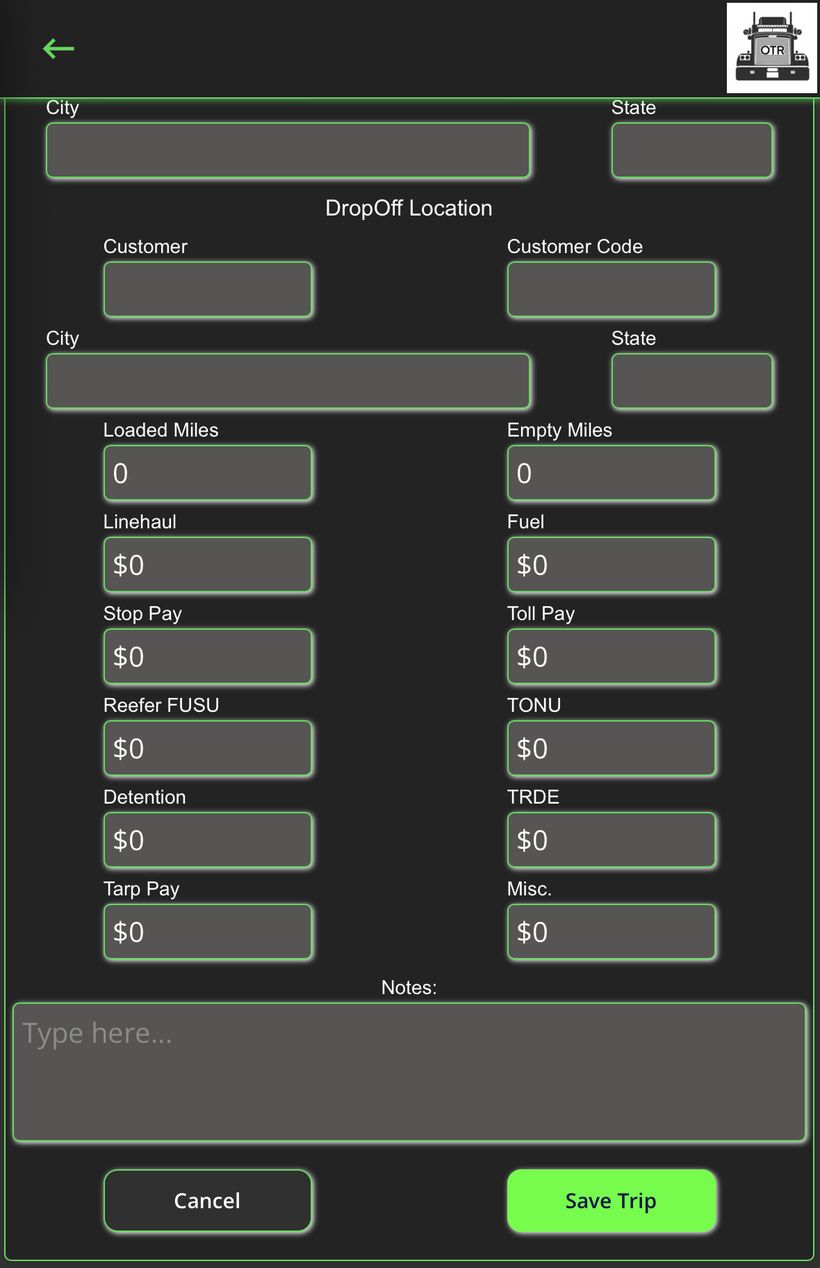
The pay section — enter every dollar from your rate con
Scroll down on the form to reach the pay fields. Enter what's on your rate confirmation — only fill in what applies to this load.
- Loaded Miles — Miles you drove with freight on board.
- Empty Miles — Deadhead miles to get to the pickup.
- Linehaul — Base rate for the load.
- Fuel — Fuel surcharge from the rate con.
- Stop Pay — Extra pay for additional stops.
- Toll Pay — Toll reimbursement if included.
- Reefer FUSU — Reefer fuel surcharge.
- TONU — Truck order not used — if the load was cancelled after you were en route.
- Detention — Pay for waiting at a shipper or receiver.
- TRDE — Trailer detention.
- Tarp Pay — Flatbed tarp fee if applicable.
- Misc. — Anything else on the rate con that doesn't fit another field.
- Notes — Free text — use it for anything worth remembering about the load.
Tip: When done, tap Save Trip.
The load will appear in your list and the totals at the top will update automatically.
OTR On The Revenue — Built for drivers who run their truck like a business. | ontherevenue.com