
Out of Pocket Expenses
Out of Pocket Expenses is where you track everything you spend to run your business that doesn't come out of a settlement. Tolls, insurance, cell phone, subscriptions, food, hotels — if it came out of your pocket, it goes here. Log it consistently and you'll know exactly what it costs you to stay on the road.
The Calendar View
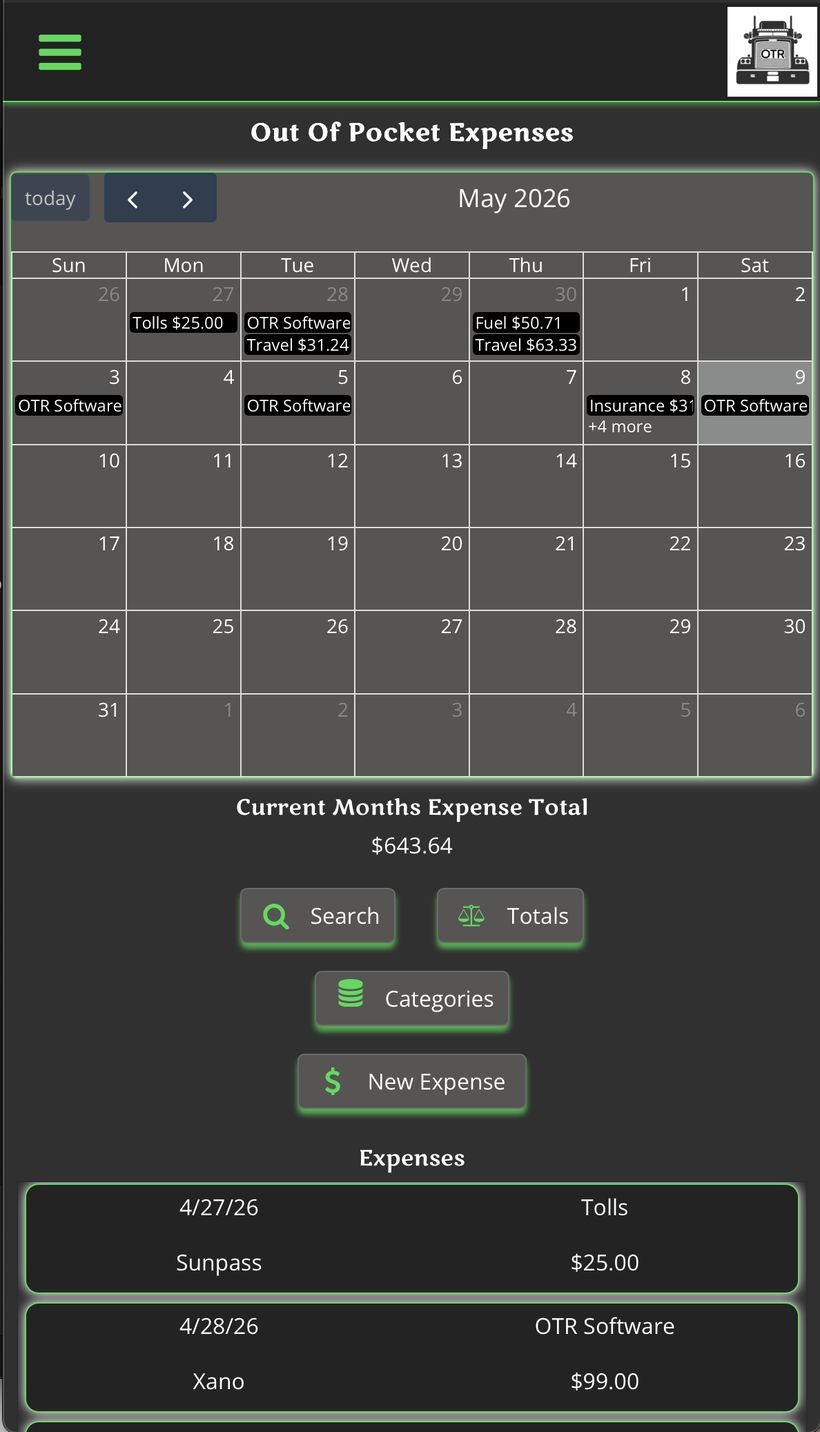
Your expenses laid out on a calendar
When you open Out of Pocket Expenses, you land on a monthly calendar view. Every expense you log shows up on the day it was entered so you can see your spending at a glance.
- Arrow buttons — Tap the left and right arrows to move between months.
- Today button — Jumps you back to the current month instantly.
- Calendar entries — Each expense appears on its date showing the category and amount. If there are multiple expenses on one day, it shows the first few and a "+X more" indicator.
- Current Month Total — Running total of all out of pocket expenses for the month shown below the calendar.
- Expenses list — Full list of individual expenses below the total, sorted by date.
Tip: Use the calendar to spot patterns.
If your spending spikes in a certain week every month, you'll see it here.
Entering a New Expense
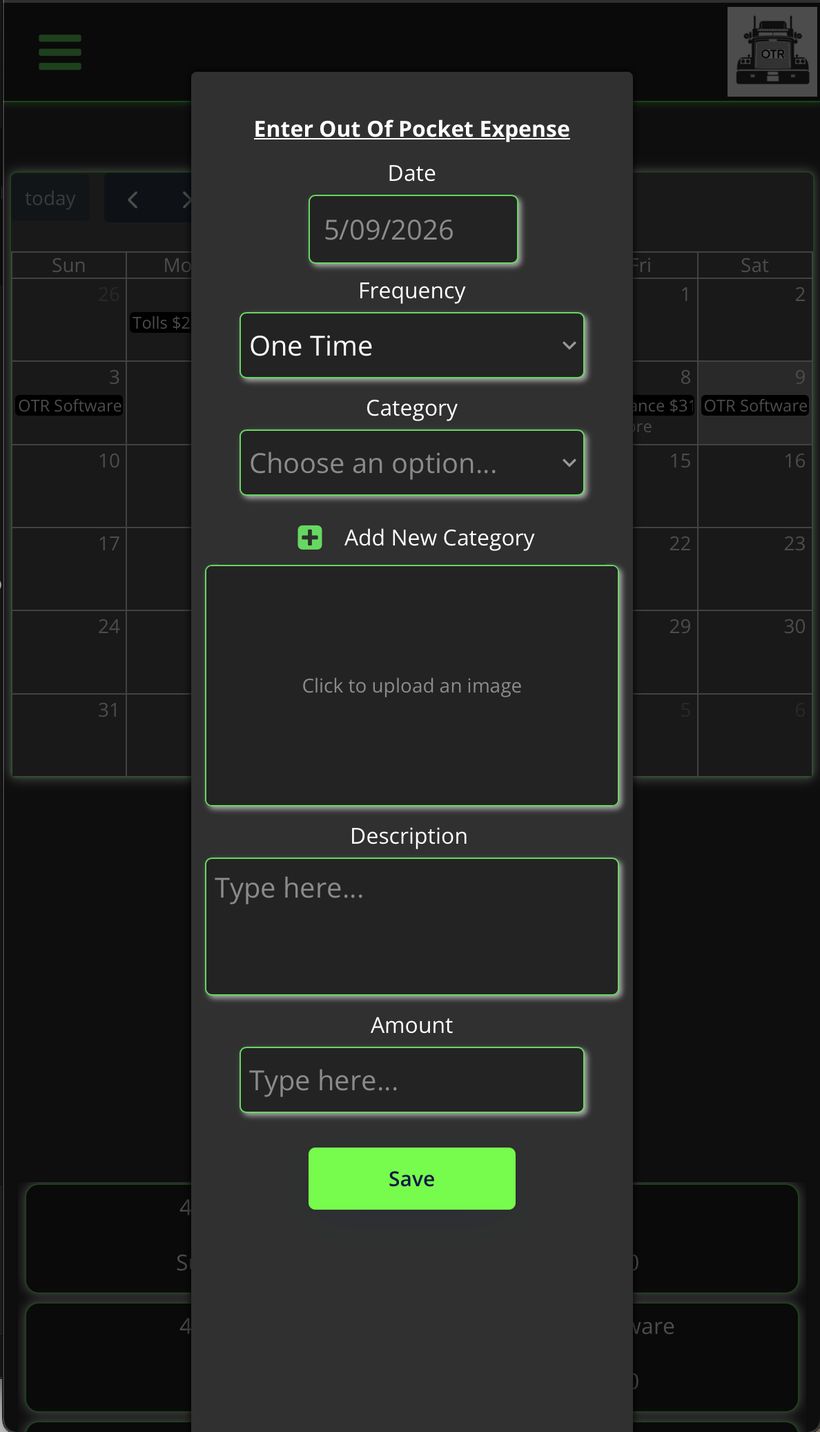
Tap "New Expense" to log an expense
The entry form is simple — fill in four fields and tap Save.
- Date — Auto-fills to today. Change it if you're logging something from a previous day.
- Frequency — One Time or Monthly. Use Monthly for recurring expenses like insurance or subscriptions — OTR will log them automatically each month.
- Category — Pick from your existing categories or tap "Add New Category" to create one on the spot.
- Image — Optional — tap the image box to attach a photo of your receipt.
- Description — Brief note about what the expense was for. Be specific enough that you'll remember it later.
- Amount — Dollar amount of the expense.
Tip: Tap Save when done.
The expense appears on the calendar and the monthly total updates automatically.
One Time vs Monthly
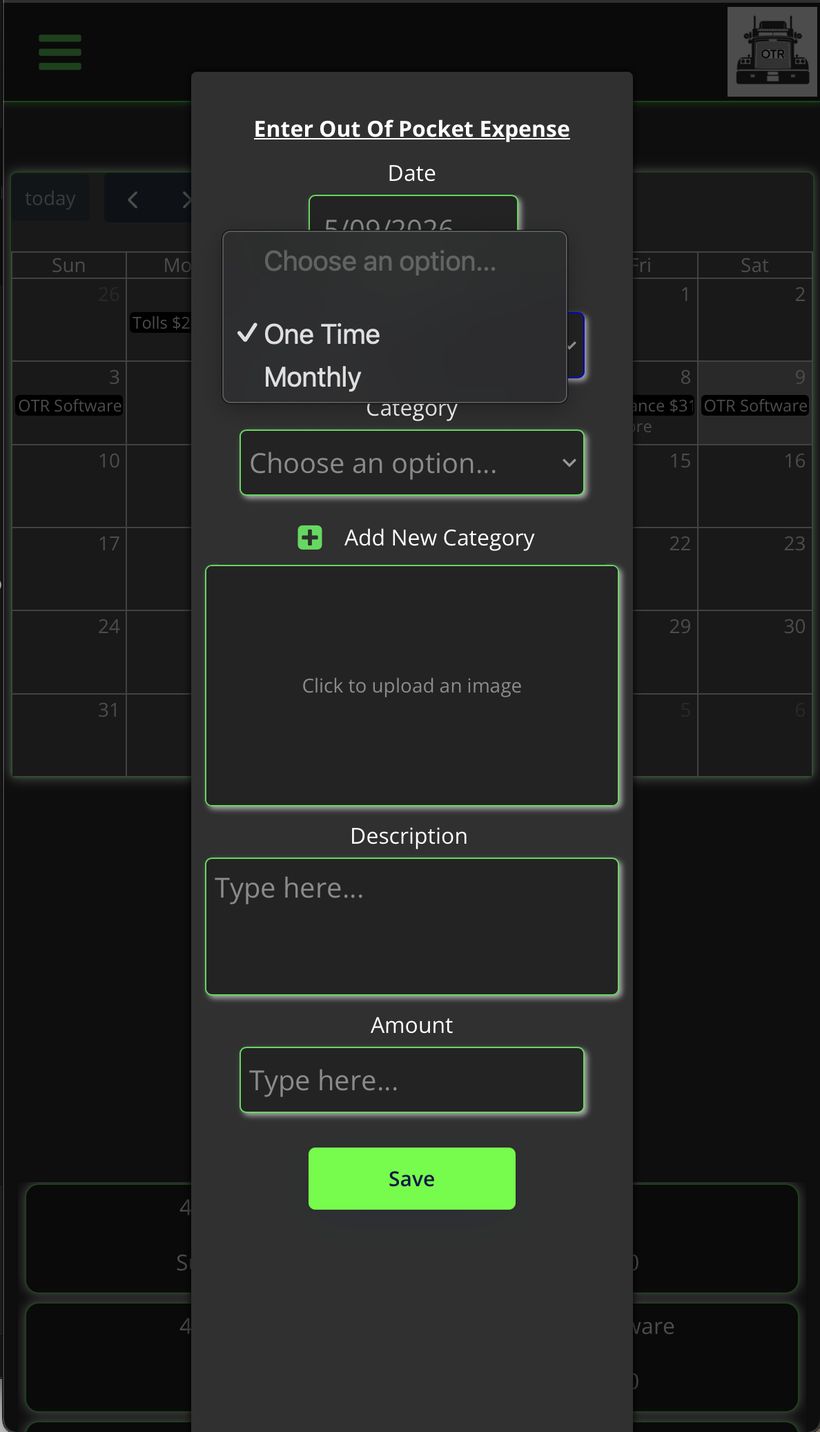
Set the right frequency for every expense
The Frequency dropdown has two options — pick the one that fits.
- One Time — Use this for anything that doesn't repeat — a one-off repair, a meal, a permit fee, tolls.
- Monthly — Use this for fixed recurring expenses like insurance, subscriptions, cell phone, or truck payments. OTR logs these automatically each month so you don't have to re-enter them.
Tip: Set your monthly expenses once and forget them.
They'll show up every month without you having to do anything.
Categories
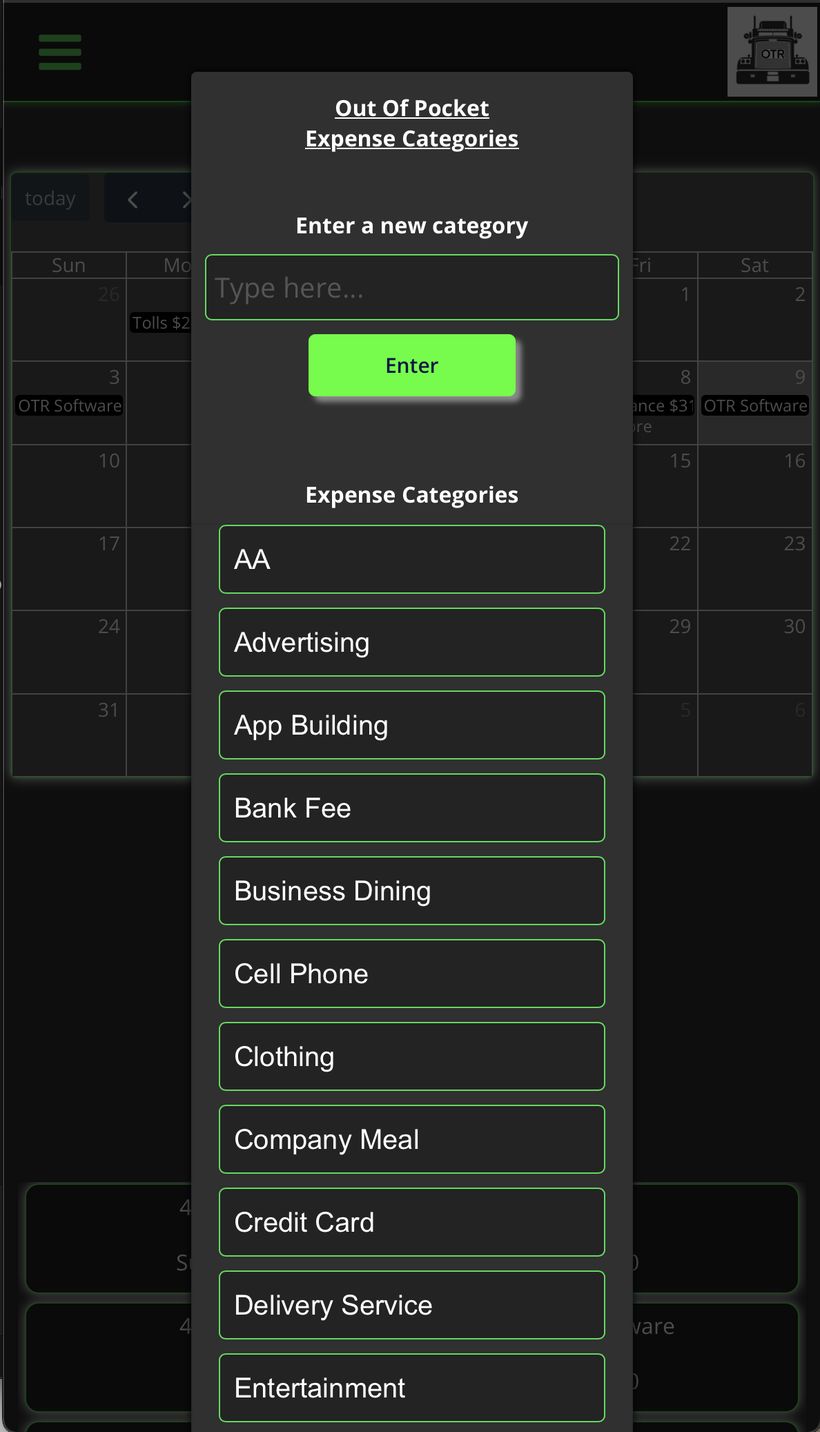
Tap "Categories" to manage your expense categories
OTR comes with a set of categories built in. You can add your own any time from this screen or directly from the entry form.
Business Dining
Cell Phone
Clothing
Equipment
Food
Fuel
Insurance
License / Permits
Maintenance
Medical
OTR Software
Safety Equipment
Subscriptions
Taxes
Tolls
- Add your own
Tip: To add a new category
, type the name in the field at the top of the Categories screen and tap Enter.
Totals by Category
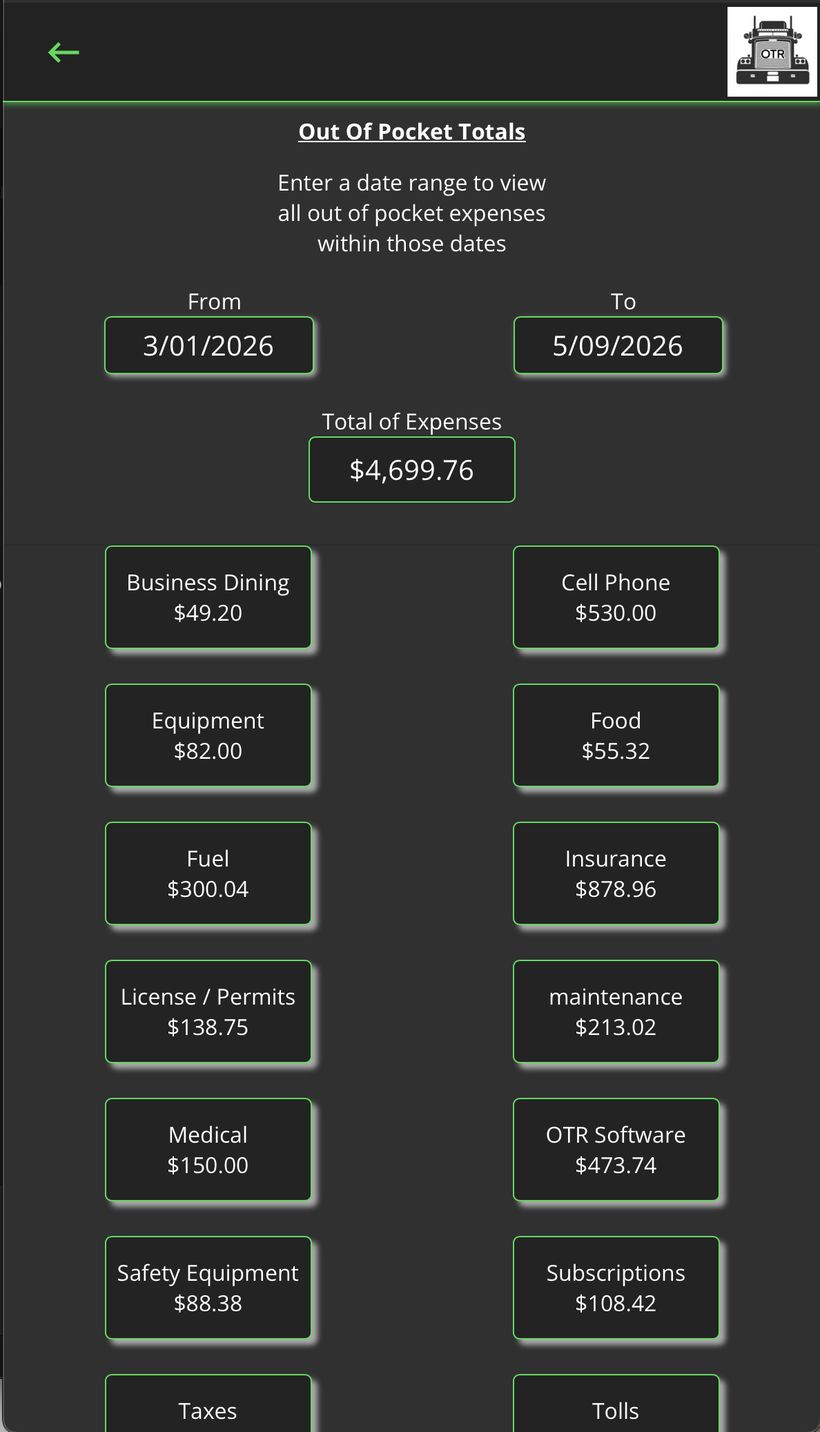
Tap "Totals" to see spending broken down by category
Set a date range and OTR shows you exactly how much you spent in each category during that period.
- From / To dates — Set the date range you want to analyze — a month, a quarter, the whole year.
- Total of Expenses — Grand total across all categories for that date range.
- Category buttons — Each category shows its total. Tap any one to drill down and see the individual expenses inside it.
Tip: Use Totals at tax time.
Pull the full year and you have a clean breakdown of every business expense category — ready to hand to your accountant.
Drilling Into a Category
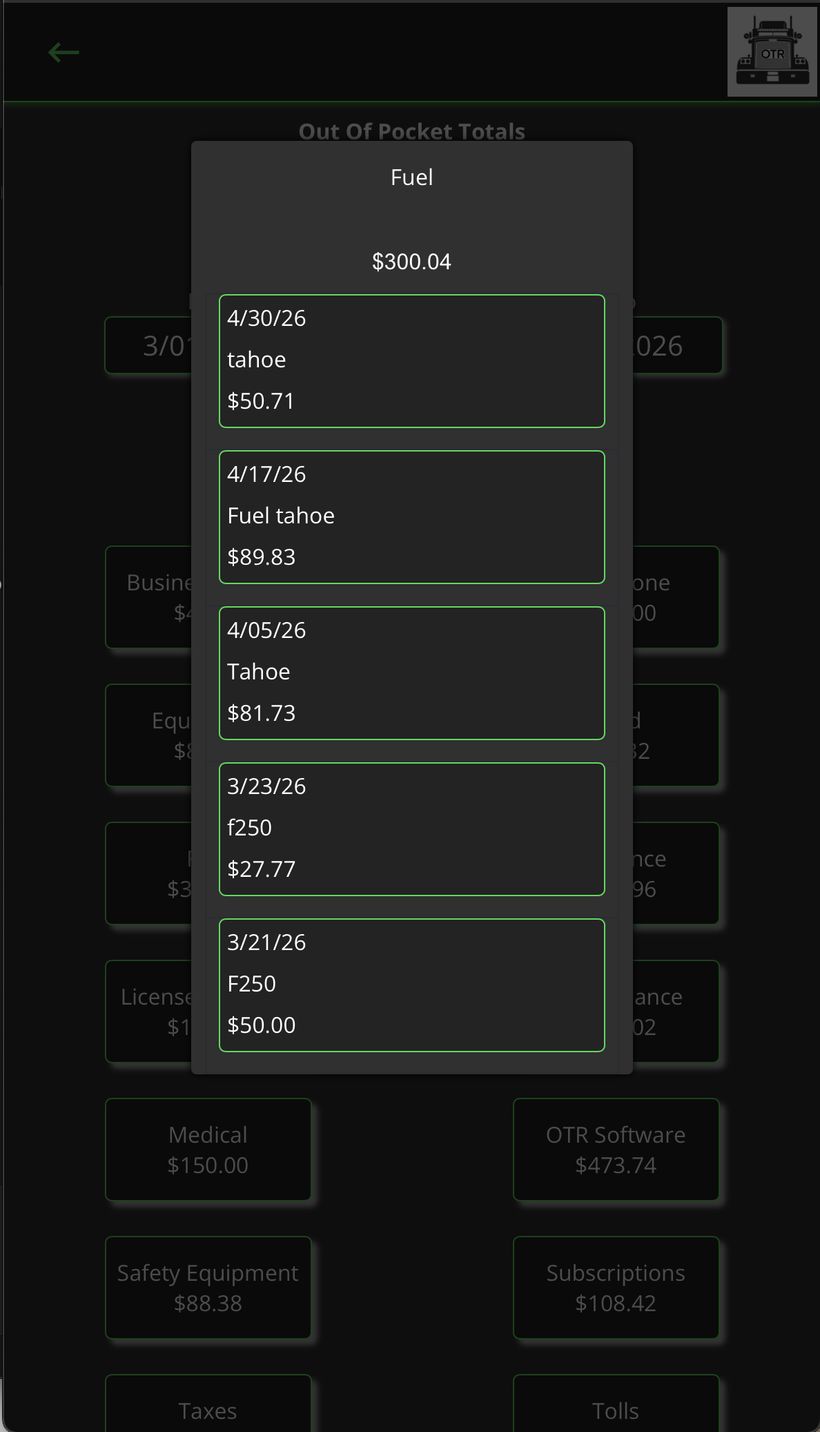
Tap any category to see every expense inside it
When you tap a category from the Totals screen, you see a list of every individual expense logged in that category during your date range — date, description, and amount for each one.
Tip: This is your audit trail.
If a number looks off, tap into the category and find the exact entry that caused it.
Searching Expenses
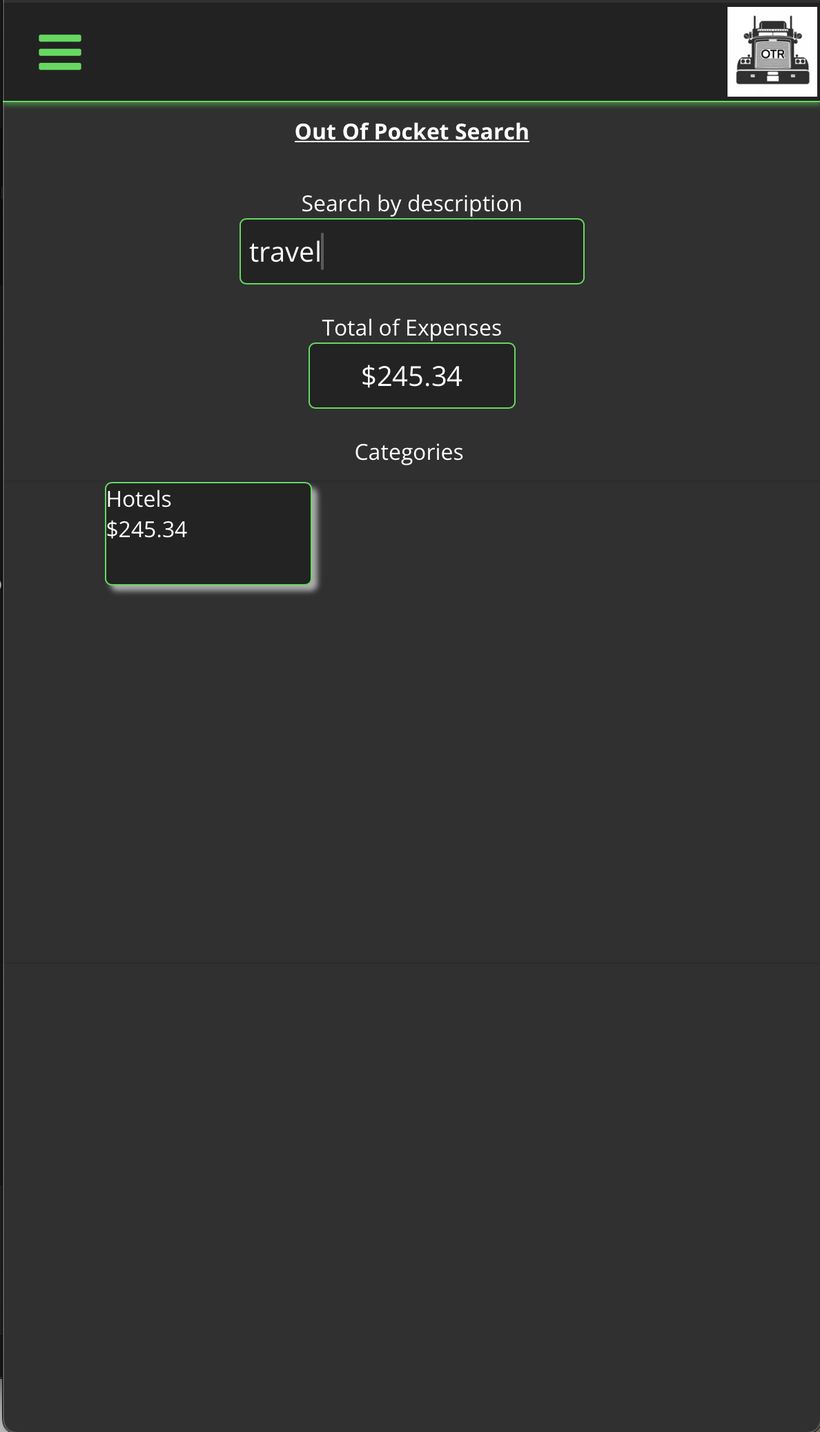
Tap "Search" to find a specific expense
Type any word from the description field and OTR filters your expenses instantly. The total at the top updates to show only the matching expenses.
- Search by description — Type any keyword — name of a vendor, a location, or anything you put in the description field when you logged it.
- Total of Expenses — Updates live to show the total of matching expenses only.
- Categories — Shows which categories the matching expenses fall into.
OTR On The Revenue — Built for drivers who run their truck like a business. | ontherevenue.com ↗