
Settlements
What Is the Settlements Section?
The Settlements section is where you enter your weekly pay from the carrier. OTR takes the raw numbers off your settlement sheet and turns them into real business metrics — net revenue, cash flow, profit margin, CPM, EPM, and RPM — automatically.
The Three Buckets
Every settlement is broken into three sections. Understanding these is the foundation of the entire module.
Revenue
Everything the carrier paid you — linehaul, fuel surcharge, stop pay, longevity, tolls, and any other income line items. Enter each one exactly as it appears on your settlement sheet.
Assets
Money that comes off your revenue but is held in a separate account by the carrier — it's still your money, you just don't see it on your paycheck. A common example is a Tire Fund. It's not an expense — the money isn't gone, it's being held for you.
Expenses
Everything deducted from your settlement that is a true cost — truck payment, insurance, fuel card charges, Qualcomm, shop invoices, fuel tax, permits. These are your real operating costs.
How OTR Calculates Your Numbers
| Metric | Formula |
|---|---|
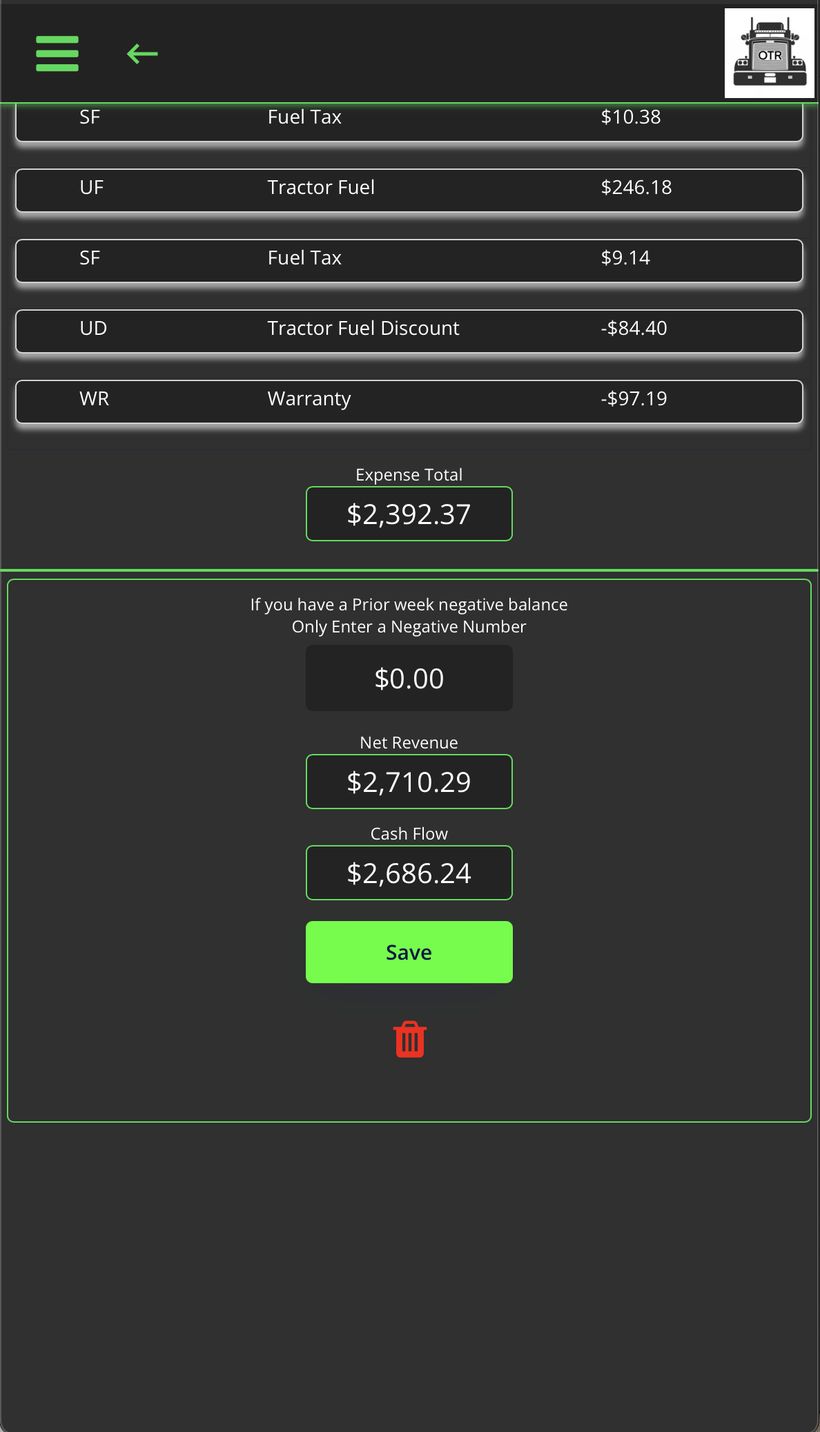
| Net Revenue | Revenue − Expenses |
| Cash Flow | Net Revenue − Assets (what actually hits your hand) |
| Prior Week Negative Balance | If your settlement came up short and you owed the carrier, enter that amount as a negative number — it factors into this week's Cash Flow |
The Settlements Summary
The main Settlements screen gives you a full performance overview — 30-day averages, year-to-date totals, and a list of every settlement entered.
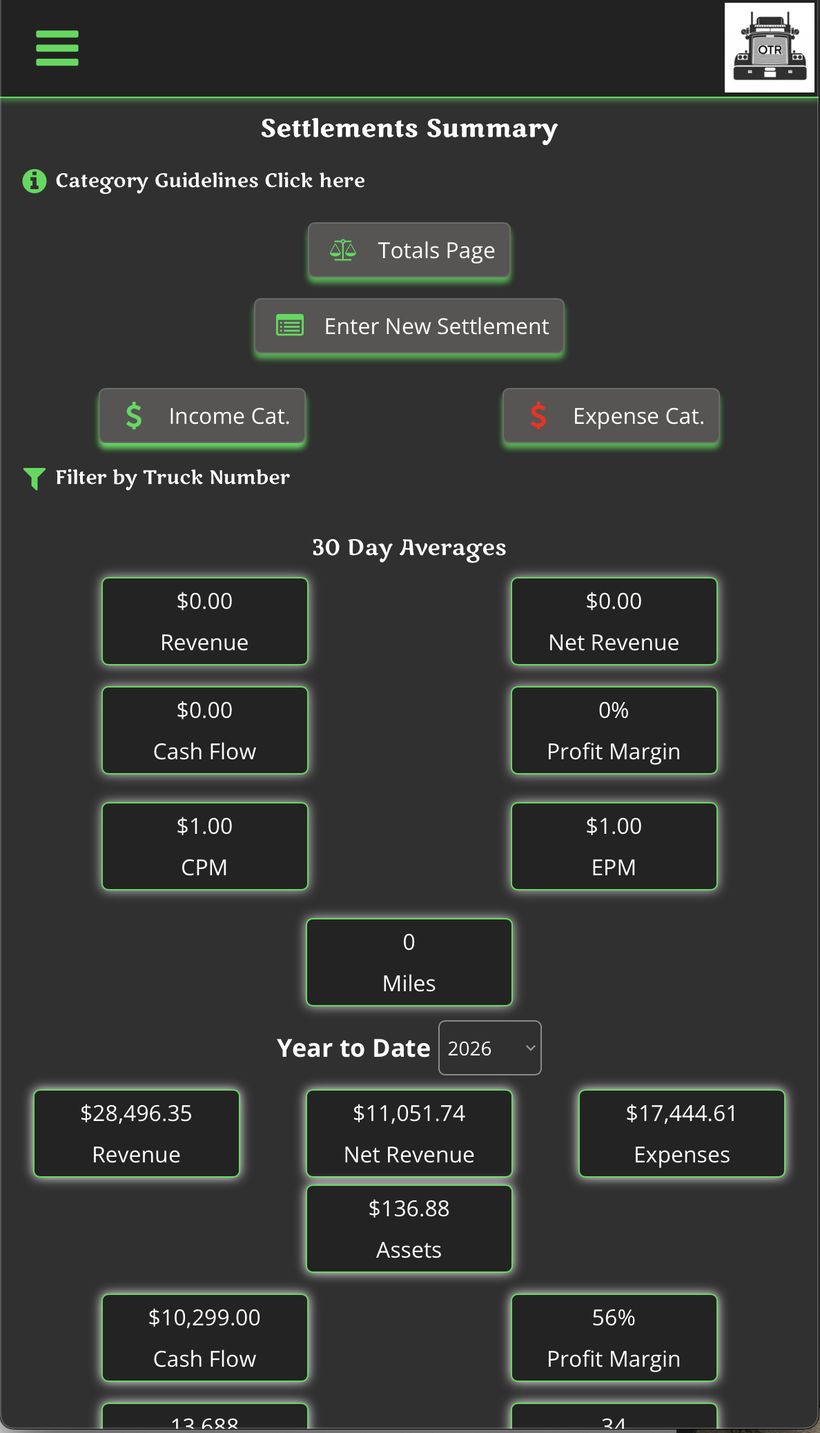
Summary — 30-day averages and YTD totals
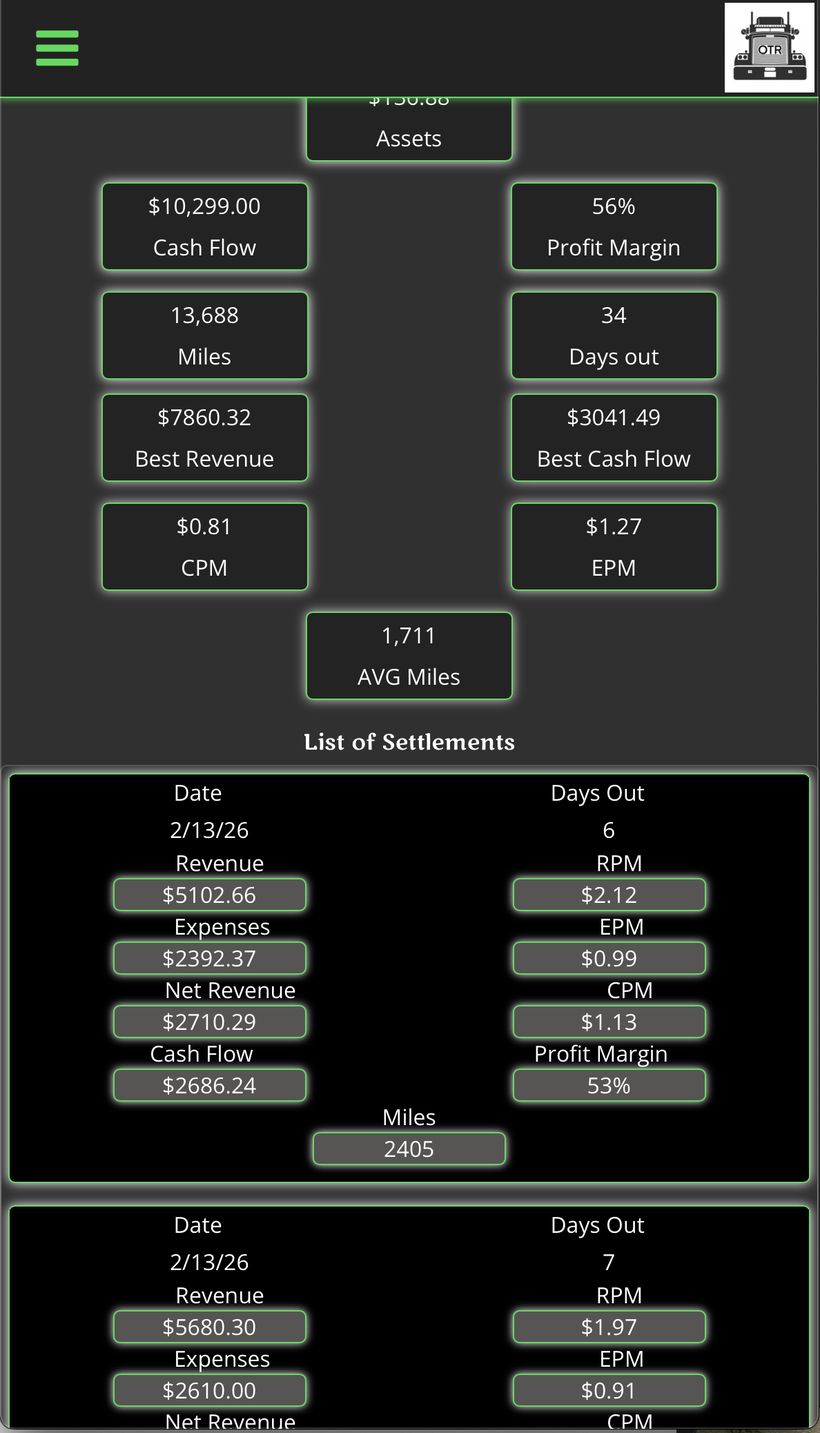
Settlement list — each entry with full metrics
| Item | What It Shows |
|---|---|
| 30-Day Averages | Revenue, Net Revenue, Cash Flow, Profit Margin, CPM, EPM, Miles — rolling 30-day averages |
| Year to Date | Revenue, Net Revenue, Expenses, Assets, Cash Flow, Profit Margin, Miles, Days Out, Best Revenue, AVG Cash Flow, CPM, EPM, AVG Miles for the selected year |
| List of Settlements | Every settlement entered, newest first — Date, Revenue, Expenses, Net Revenue, Cash Flow, Profit Margin, Miles, Days Out |
Tap any settlement in the list to view every line item broken down across Revenue, Assets, and Expenses with CPM calculated for each one.
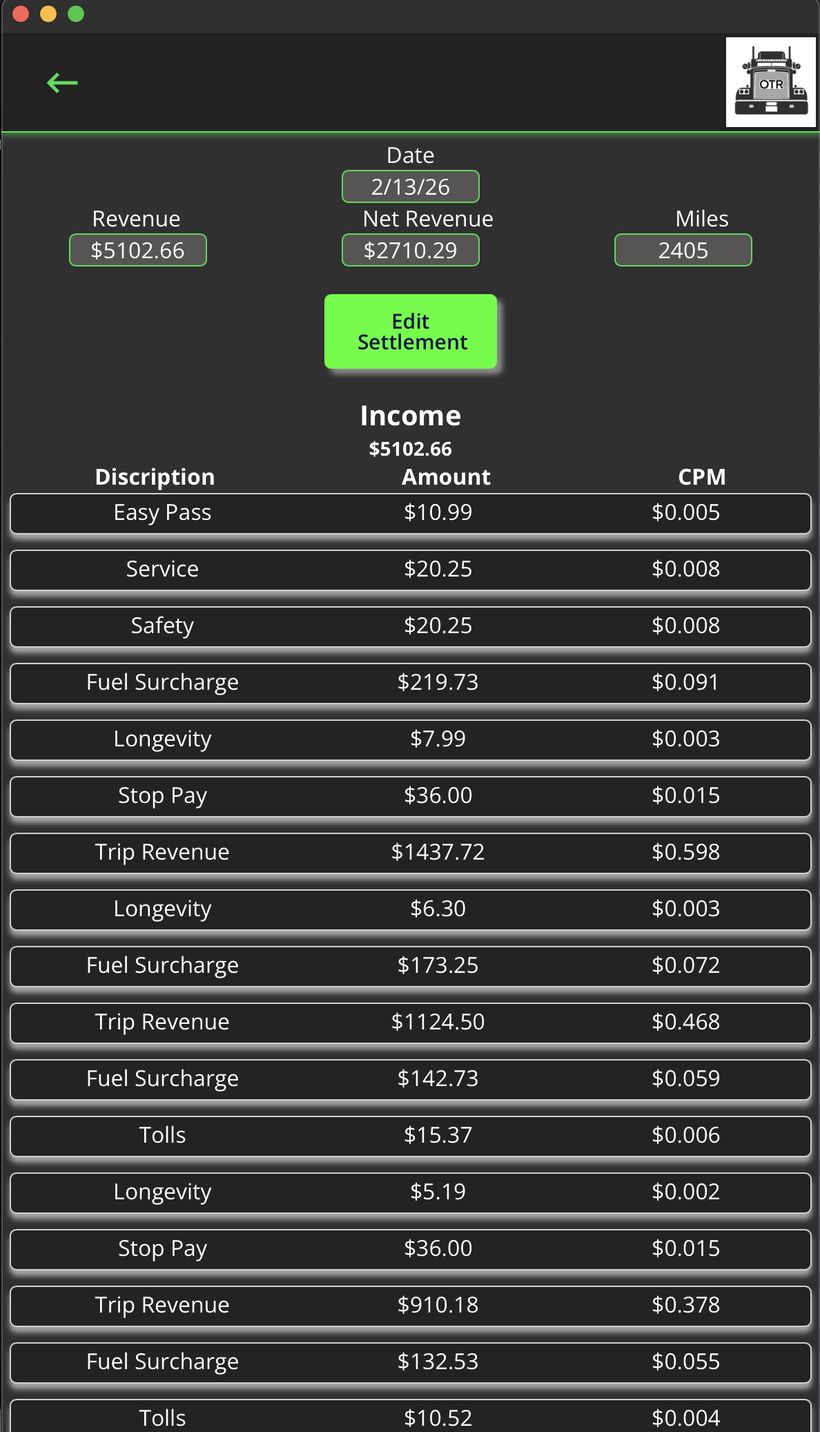
Settlement detail — Revenue line items with CPM
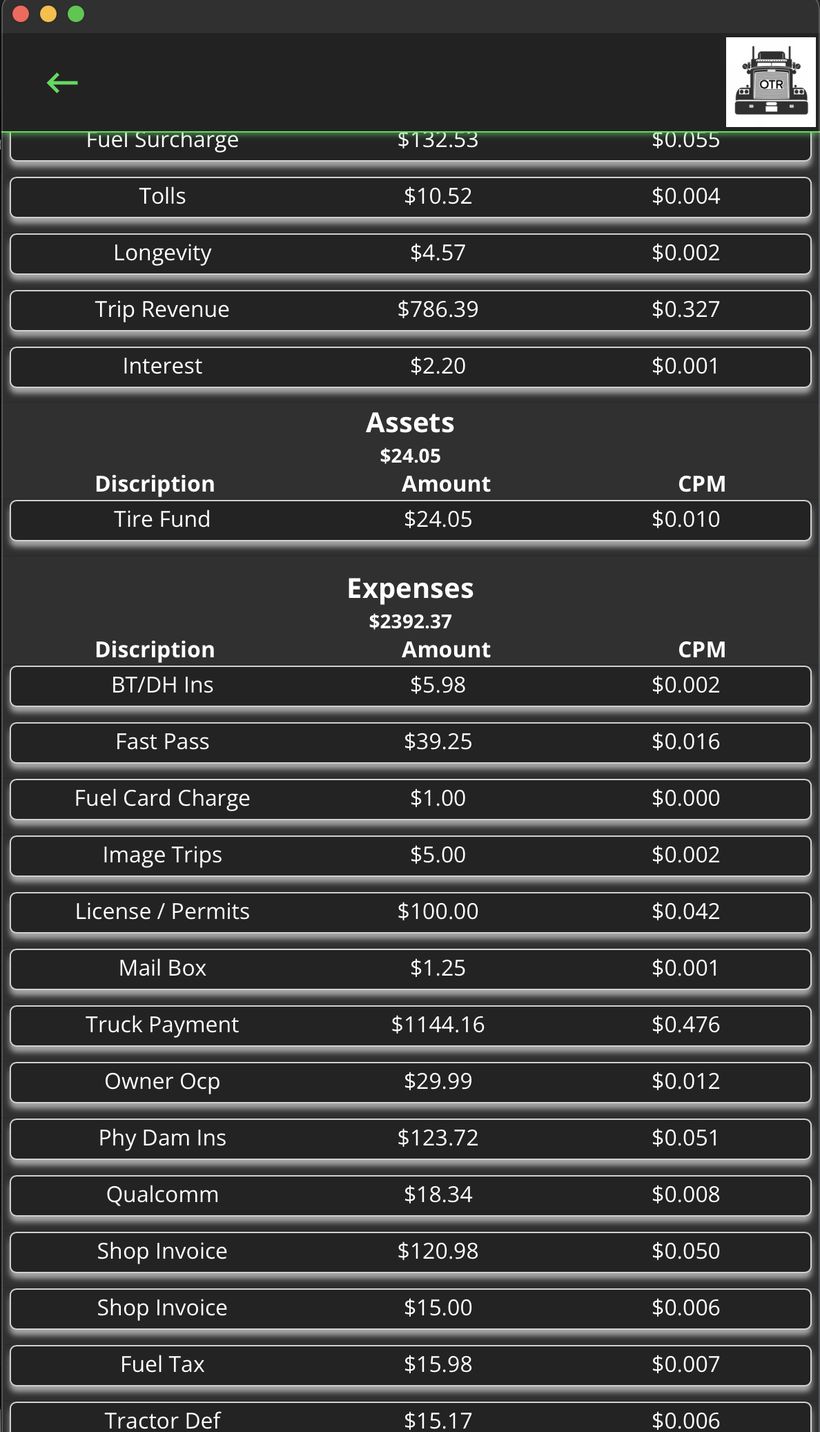
Settlement detail — Assets and Expenses
How to Enter a New Settlement
Tap Enter New Settlement from the Summary screen. Work through the form top to bottom, entering each line item from your settlement sheet as you go.
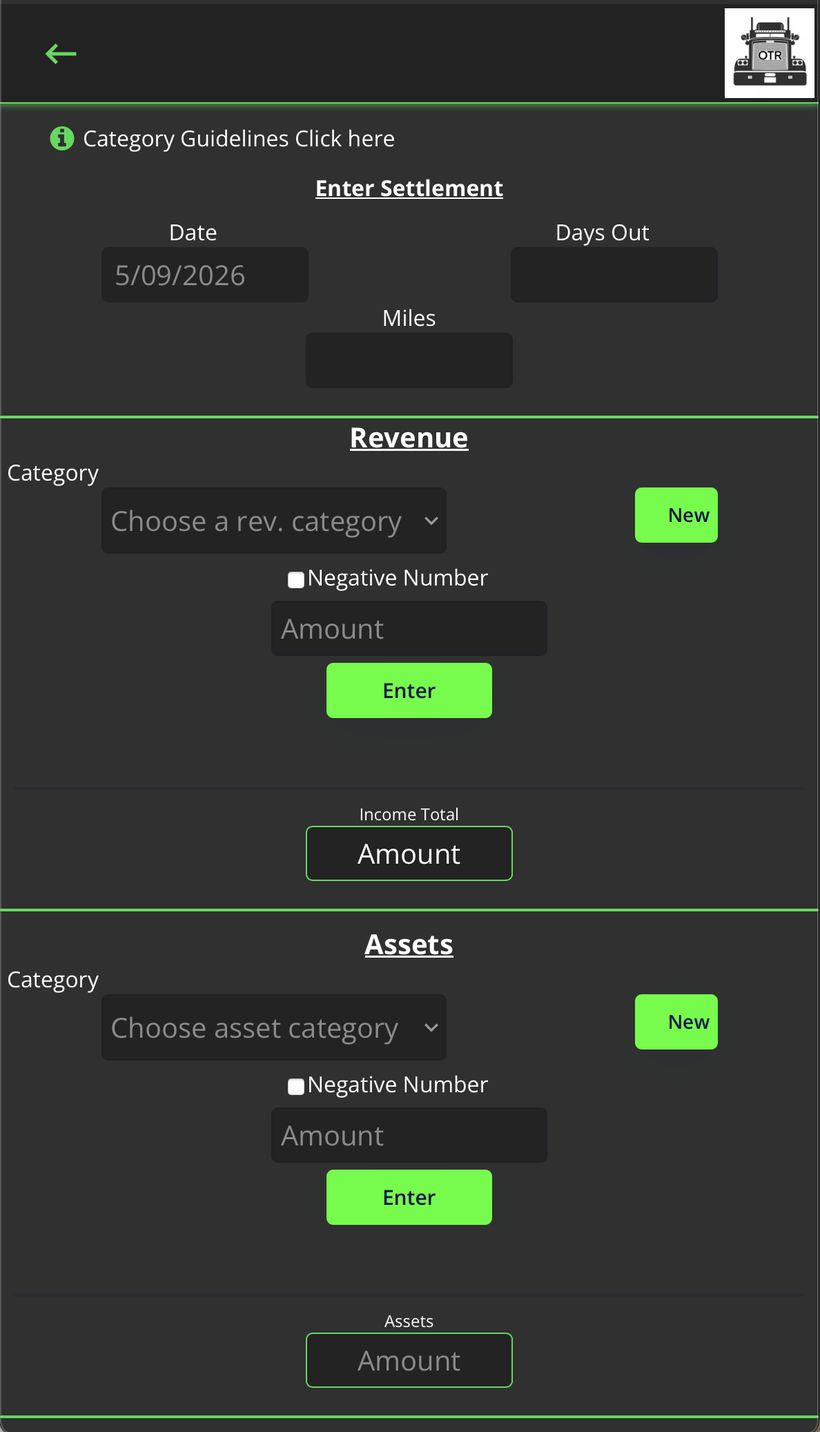
New settlement form — header fields and Revenue section
Expenses section and bottom summary
- Enter the Date — the date on your settlement sheet.
- Enter Days Out — how many days you were on the road this pay period.
- Enter Miles — total miles for this settlement period.
- Enter each Revenue line item — select the category, enter the amount, tap Enter. Repeat for every income line on your settlement.
- Enter each Asset line item — anything the carrier is holding on your behalf (e.g. Tire Fund).
- Enter each Expense line item — every deduction on your settlement sheet.
- If you had a prior week negative balance (you owed the carrier), enter it as a negative number in the field at the bottom.
- Review your Net Revenue and Cash Flow — calculated automatically. Tap Save.
Negative Numbers
Some line items on your settlement appear as negative — reimbursements, fuel discounts, warranty credits. Check the Negative Number checkbox before entering the amount and OTR will handle it correctly.
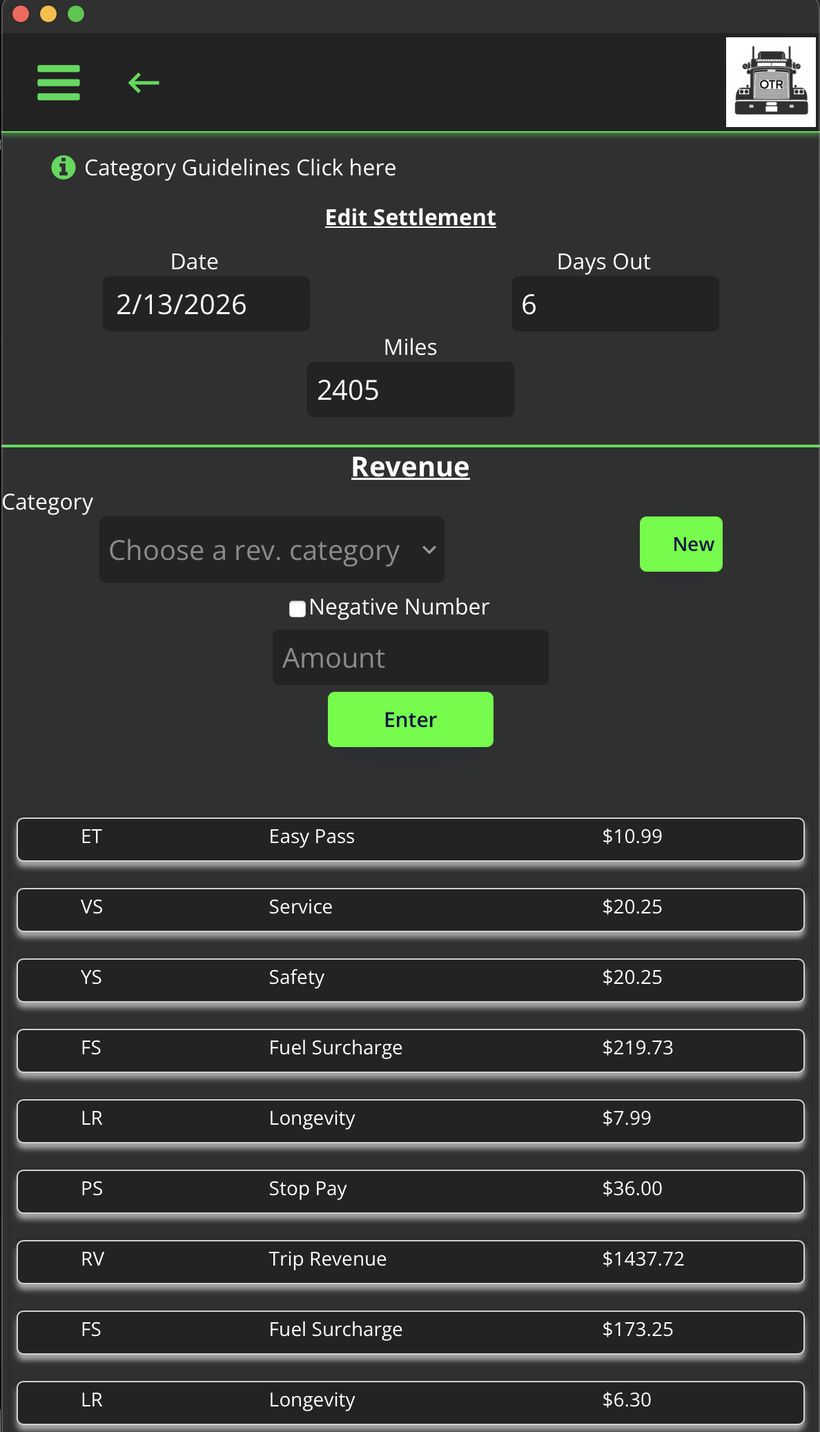
Revenue entry — category dropdown, amount, Enter button
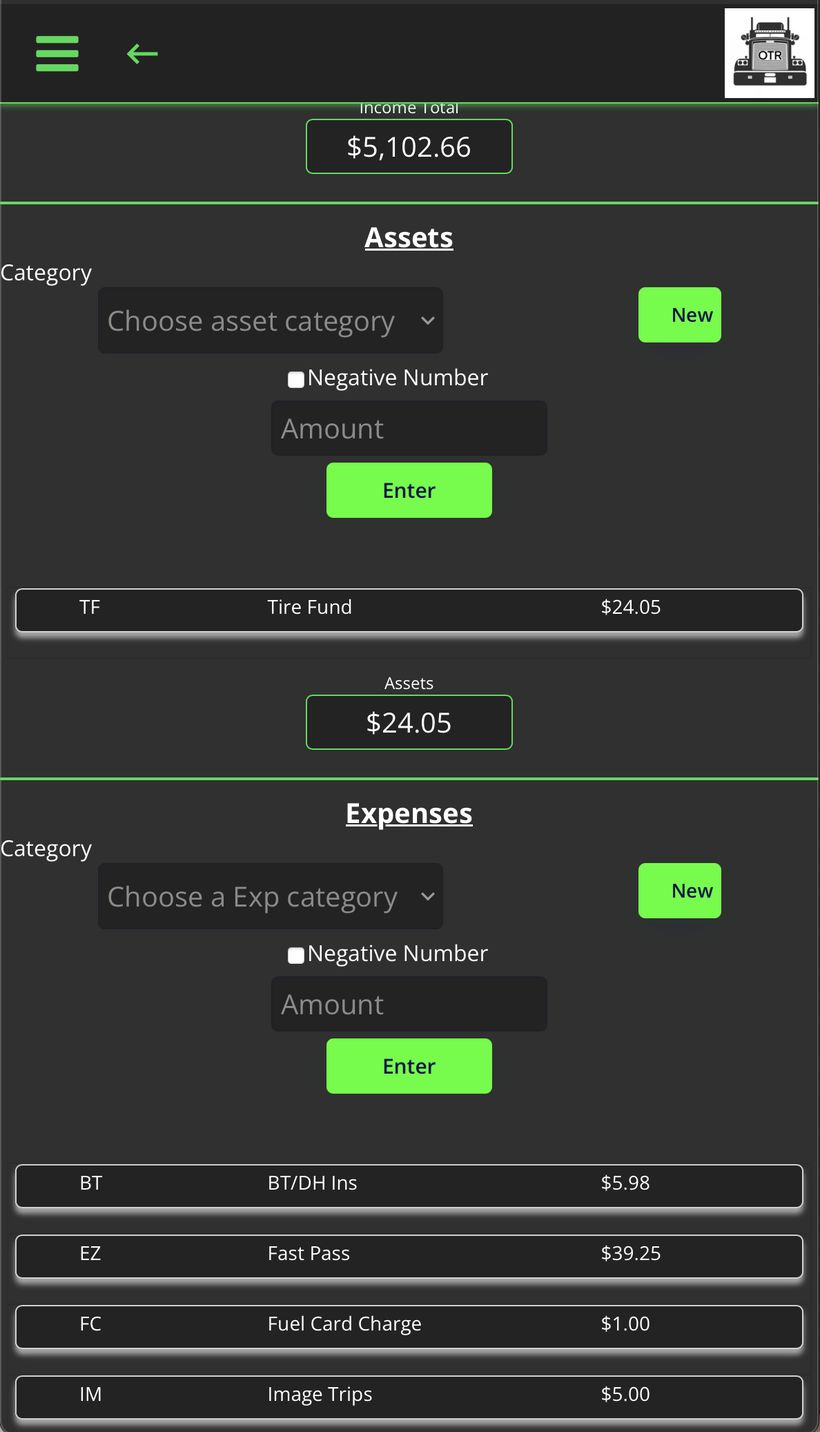
Assets and Expenses entry sections
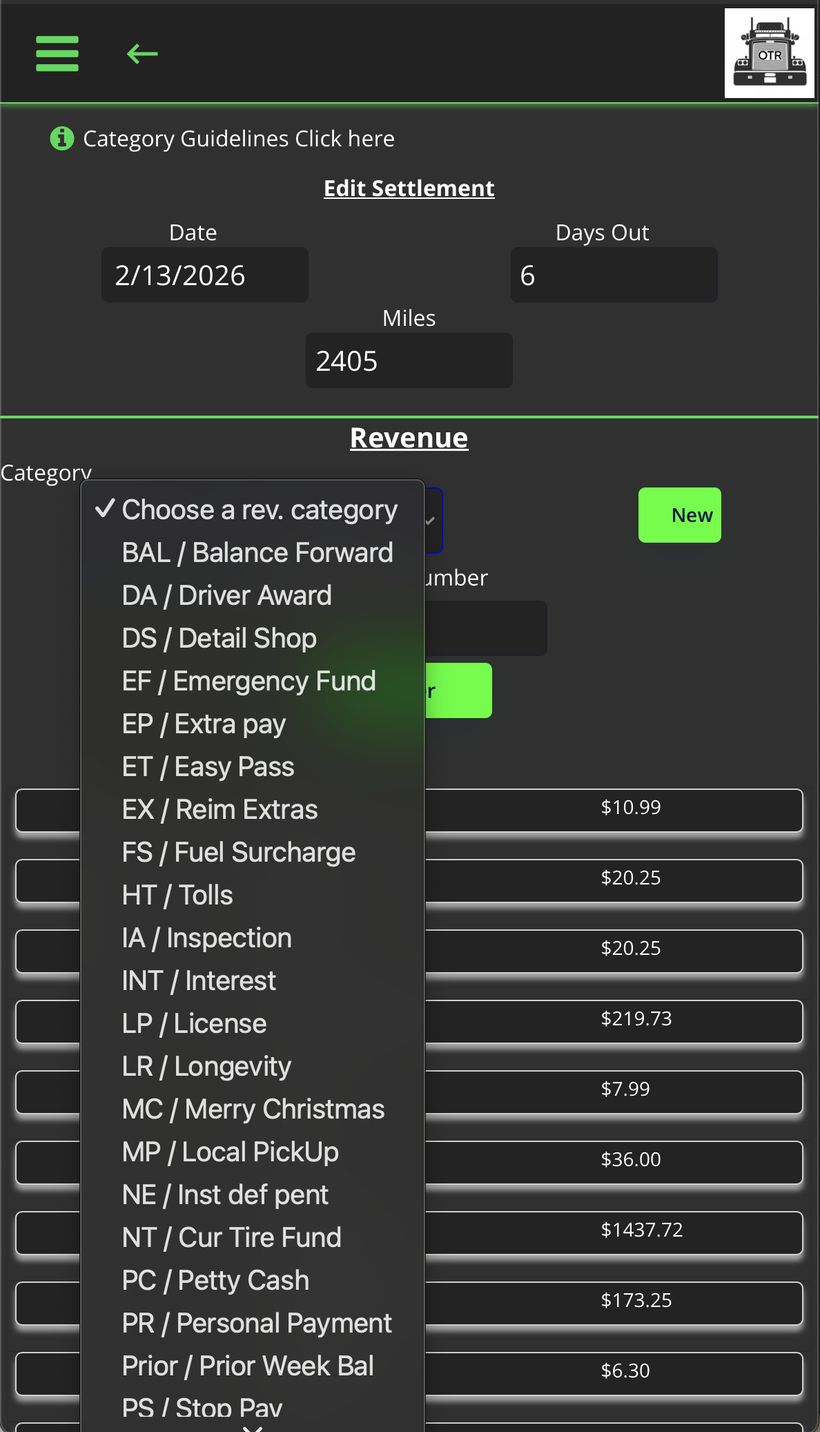
Bottom of form — expense list, Net Revenue, Cash Flow, Save button
Managing Your Categories
Categories are how OTR maps each line item to a consistent label. You build your own list to match your carrier's settlement sheet. Each category has a short code (2–3 letters) and a description.
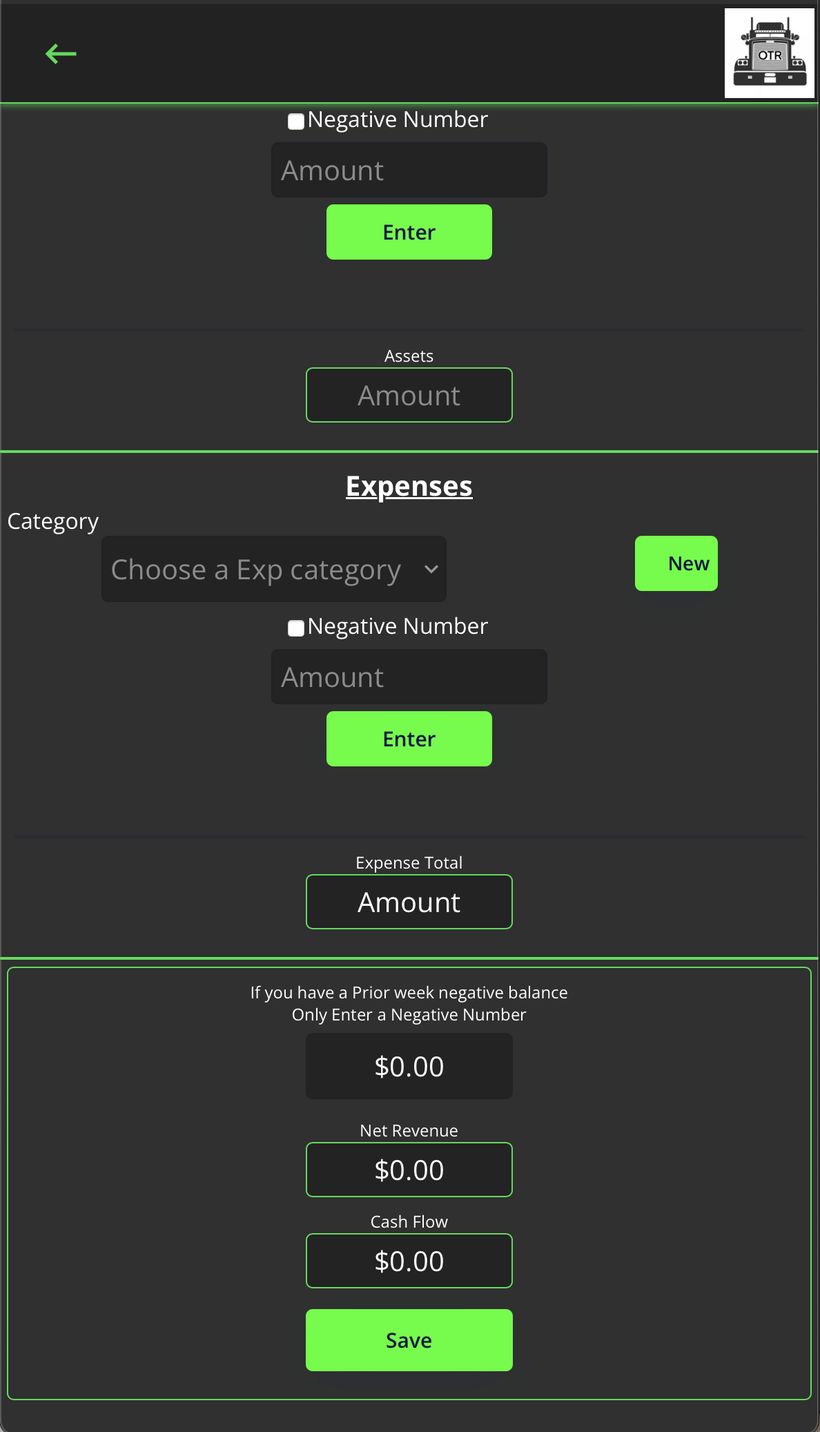
Revenue category dropdown — select or add on the fly
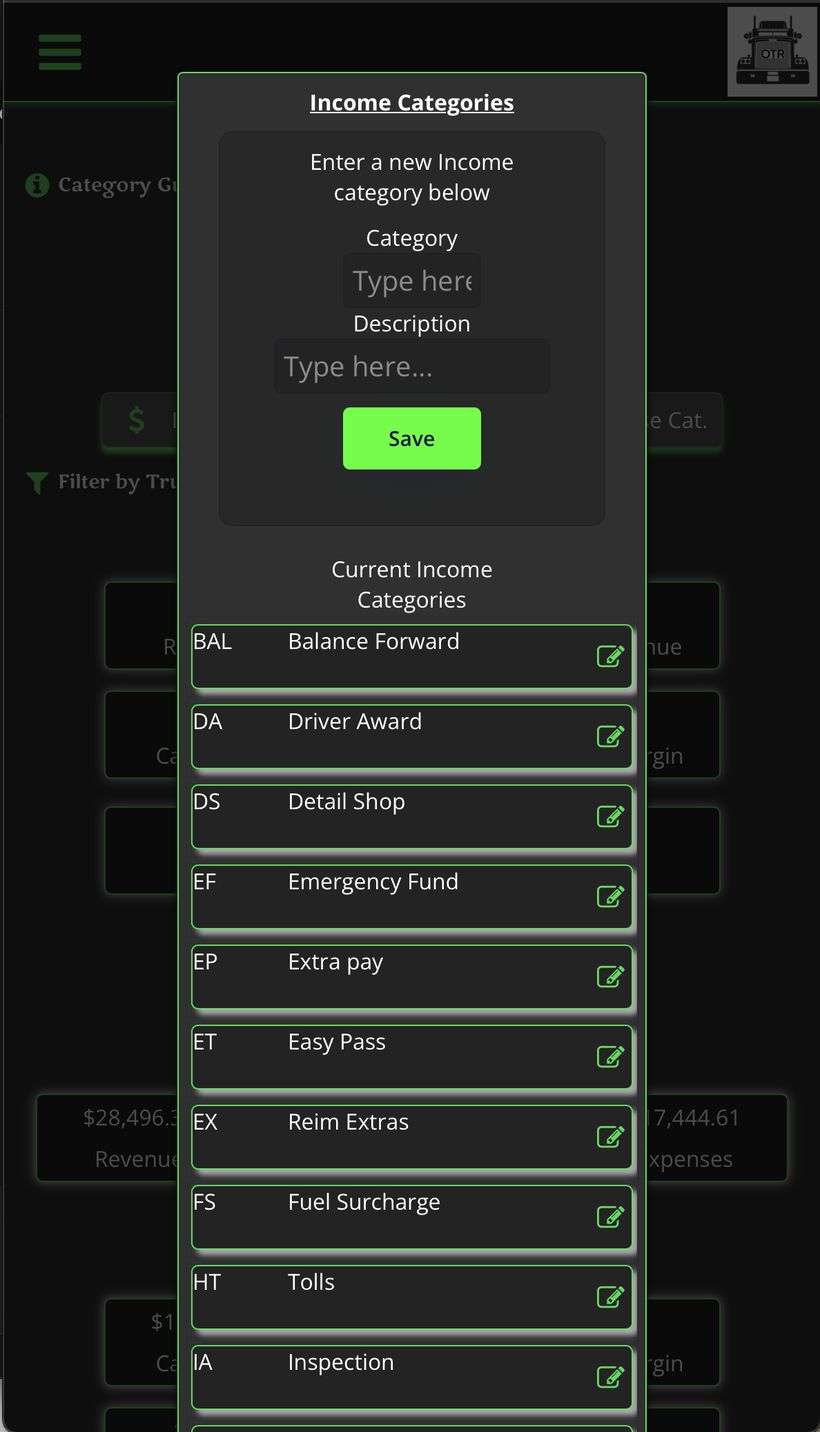
Income Categories manager — add new or edit existing
Tap Income Cat. or Expense Cat. on the Summary screen to manage your category lists. Tap New inside the entry form to add a category on the fly while entering a settlement.
First time setup: Before entering your first settlement, take your most recent settlement sheet and create a category for every line item you see. You only need to do this once — after that, your categories are saved and ready to use every week.
Skip Manual Entry — Settlement Uploader
Don't want to type it all in by hand? If your carrier is supported, you can upload a PDF of your settlement and OTR will read it for you. See the dedicated Settlement Uploader guide for how it works, which carriers are supported, and current pricing.
Not Sure Which Bucket?
Tap Category Guidelines at the top of any settlement screen for a quick reference on what belongs where.
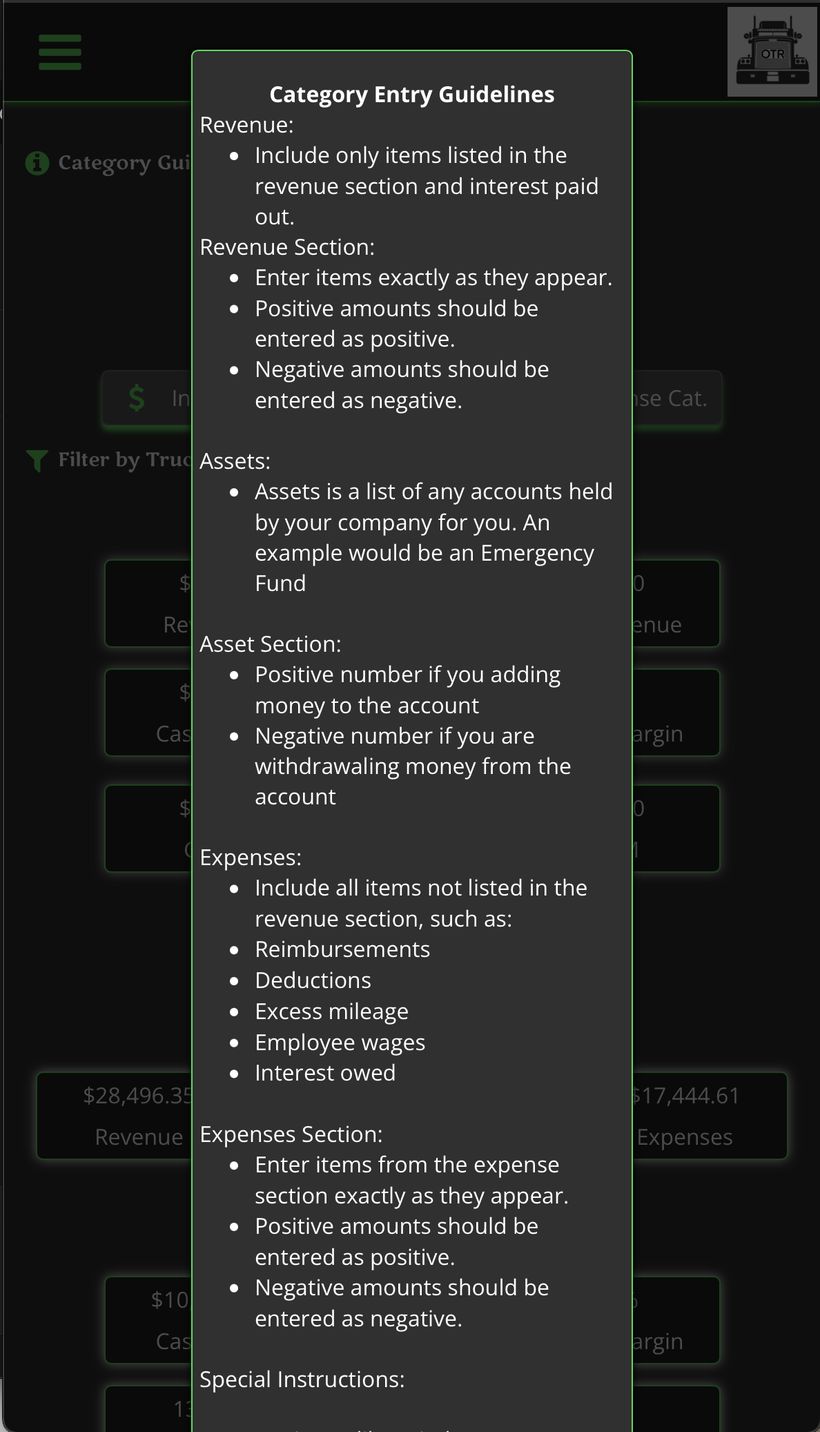
Category Guidelines — Revenue and Assets rules
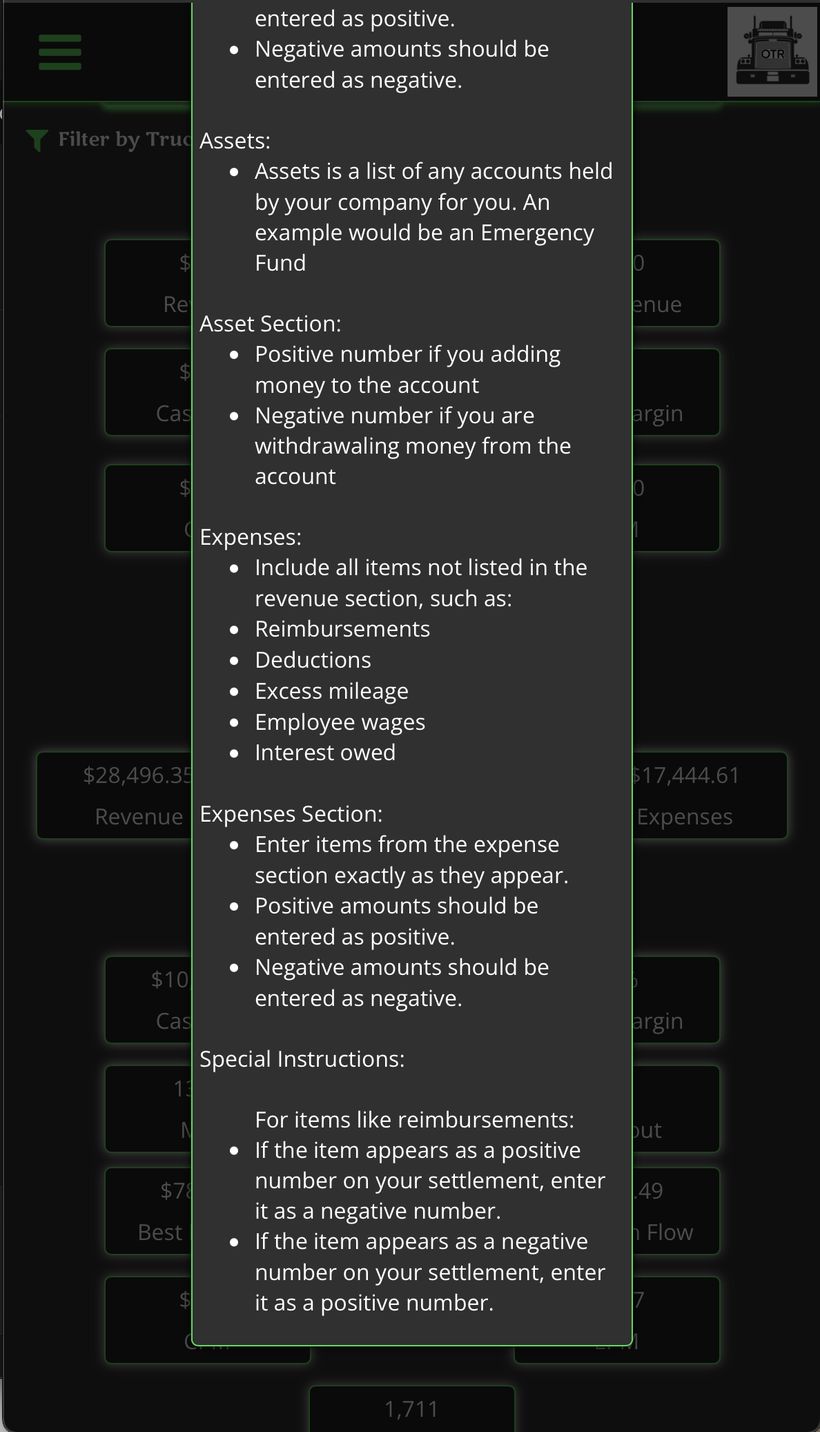
Expenses rules and special instructions for reimbursements
| Bucket | Rule |
|---|---|
| Revenue | Only items listed in the revenue section of your settlement sheet — enter exactly as they appear. Positive amounts as positive, negative as negative. |
| Assets | Accounts held by your company on your behalf (e.g. Emergency Fund, Tire Fund). Adding money = positive. Withdrawing = negative. |
| Expenses | Everything not in the revenue section — reimbursements, deductions, excess mileage, employee wages, interest. Enter exactly as they appear on the sheet. |
| Reimbursements | If it appears as a positive on your settlement, enter it as negative. If it appears as negative, enter it as positive. |
Settlement Totals Report
Tap Totals Page on the Summary screen to run a report across any date range. Select a From and To date and OTR calculates aggregated totals for that period — average revenue, total expenses, net revenue, cash flow, miles, days out, CPM, EPM, RPM, and profit margin. Expandable sections show category-level breakdowns for Revenue, Assets, and Expenses.
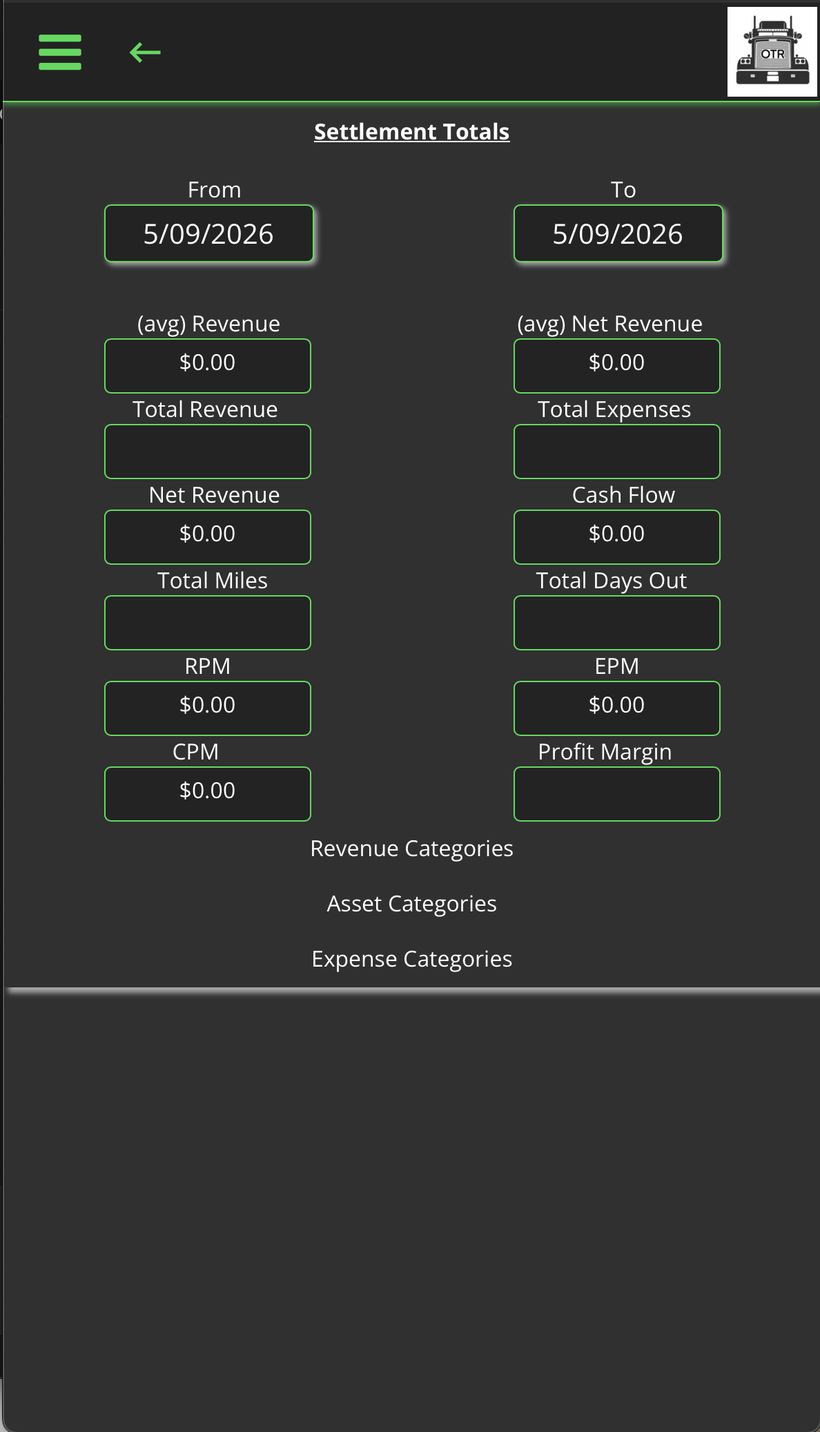
Settlement Totals — date range report with all key metrics